To troubleshoot slow phone charging, first check for warnings or damage, then test a compatible cable and wall charger, let the phone rest in a cool place, and review its battery settings. A slow charge does not automatically mean you need a new phone or charger. These checks cover common iPhone and Google Pixel situations; other Android brands may use different menus and charging standards.
Allow about 15 minutes of active checking, plus time to observe charging. This is a research-based guide using manufacturer instructions, not a hands-on repair test. Do not open the phone or attempt battery repairs.
Hero and inline images are AI-generated generic illustrations, not photographs of a particular phone or charger.
Why this topic
Checked October 19, 2026: Google Trends Explore showed the related query “how to fix slow charging” up 600% under “how to,” United States, Web Search, all categories, past 12 months. This is related-query growth over that annual comparison window, not proof of a new daily spike or growth in every charging-related search. View the Google Trends query.
What you need
- Your phone and its manufacturer charging instructions
- An intact compatible charging cable, power adapter and working wall outlet
Steps
-
Check warnings and damage before testing
Read the charging message and inspect the disconnected cable and connector. Stop using visibly damaged accessories. If a Pixel reports liquid or debris, Google says not to insert anything into the port. Let a wet device dry at room temperature and follow its specific warning instructions before reconnecting.
A burned, melted or corroded port needs professional attention. If the phone is too hot to touch, stop this tutorial and contact the manufacturer from another device. Do not try to defeat a moisture or temperature warning.
-
Test the power path one component at a time
With no safety warning present, reconnect the cable firmly and try a working wall outlet. Test a known-compatible spare cable, then a compatible adapter, changing only one item at a time. Borrowing a suitable accessory can help diagnose the problem before buying anything.
For Pixel, Google recommends compatible USB PD/PPS charging equipment and notes that actual speed depends on the model. For iPhone 15 and later, Apple recommends USB-C Power Delivery with a USB-C cable; iPhone 14 and earlier need the appropriate USB-C-to-Lightning cable. A computer, car port or shared multiport charger may provide less power. A connector that fits is not a complete compatibility check.
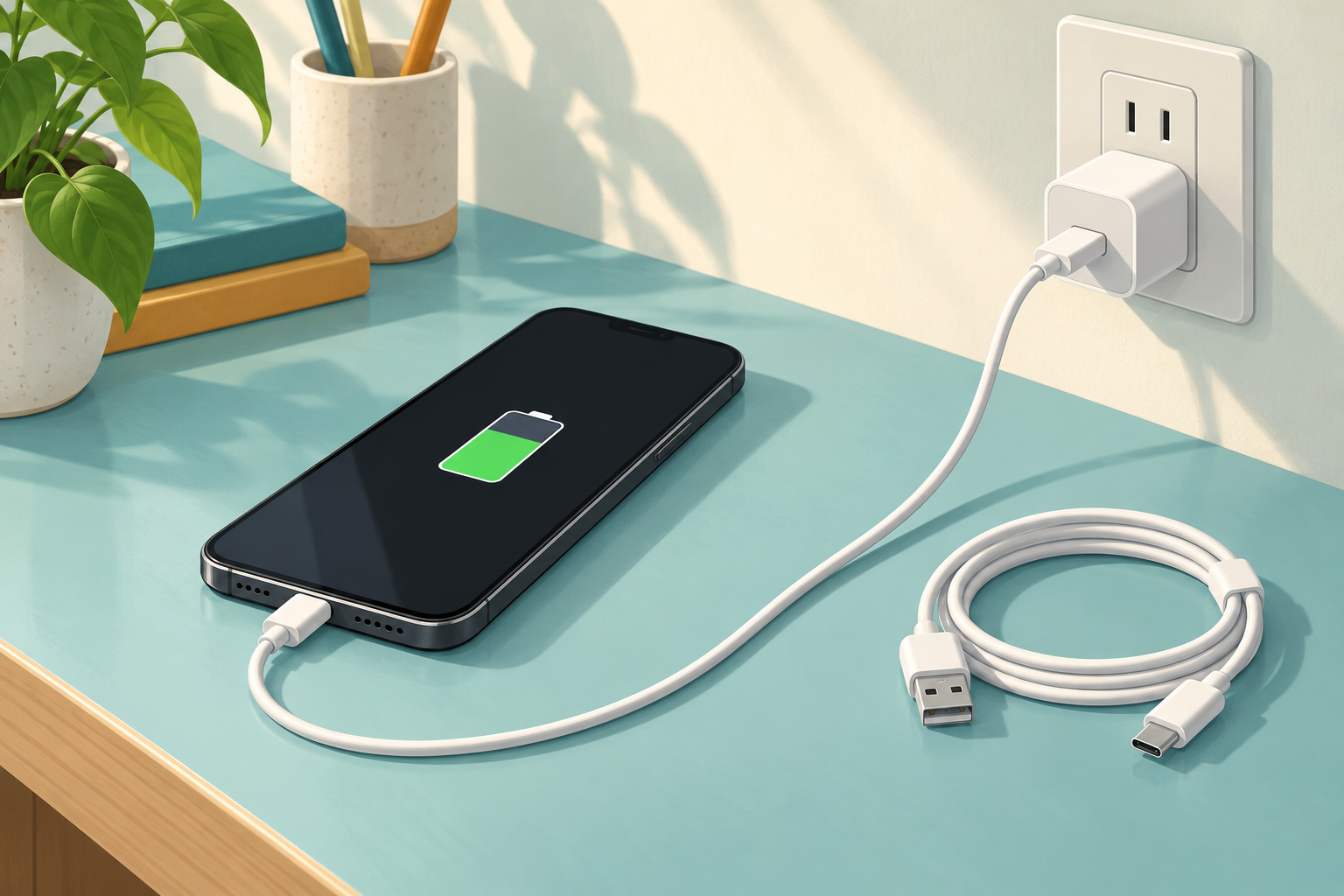
AI-generated generic illustration: compare compatible accessories one at a time; this is not a product photo.
-
Let the phone charge without extra workload
Pause demanding games or video, put the phone on a clear surface and give it time to charge. Apple notes that demanding apps and high-quality streaming can reduce charging speed. A phone outside its normal temperature range may pause charging; move it to a cooler environment and let it recover naturally.
For a repeatable check, note the starting percentage and time, then compare after a short idle interval using the same setup. This is a troubleshooting observation, not a speed benchmark. Do not expect one fixed percentage gain across different phones or battery levels.
-
Review the result and decide whether to seek support
Open Settings, then Battery on iPhone or Pixel and read the displayed charging information. On supported iPhones, a Slow Charger message can simply mean a higher-power compatible charger would help; it does not by itself prove a fault. If changing one accessory resolves the problem, record which one rather than replacing everything.
If the phone still fails to charge with compatible working equipment, follow its manufacturer troubleshooting or arrange authorized service. Avoid a factory reset as a casual charging fix: it can erase data and is outside this beginner guide.
Troubleshooting and common questions
Only wireless charging is slow? Check the exact phone and wireless charger compatibility and case fit. Google suggests using a wired connection for troubleshooting rather than assuming the battery has failed.
Should I buy a higher-wattage charger immediately? No. First check compatibility and isolate the cable, outlet and adapter. A larger wattage printed on a box does not establish what your particular phone will receive.
Can I clean the port with a pin? Do not insert tools into a Pixel USB port. Follow your own manufacturer instructions or ask for service rather than probing it.
What should I tell support? Share the phone model, warning text, charger and cable models, starting battery level, and which known-working alternatives you tried. Do not include passwords or account security codes.
Sources and related reading
- Apple: About iPhone charge speeds
- Google: Fix a Pixel phone that will not charge
- Google: Liquid, debris and unplug-charger warnings
- Related: Change Android app permissions without guesswork
Sources checked October 19, 2026. No purchase is required for the basic checks if you already have compatible equipment.